How to Set Up a CRM for a Small Business: A Practical Guide
What to set up first, what to leave for later, and how starting from your website gets a small business a working CRM in the first session, not the first week.
Set up a CRM in this order: get it answering enquiries first, add the one or two people you are talking to this week, and only then import contacts, build pipeline stages and connect every mailbox. A CRM that does something for the business in its first session gets used; one that is merely configured does not. The fastest way we know to get that first useful result is to start from your website, because it already describes what you sell, where, and to whom.
This guide covers what to set up first, what to leave for later, the factors that actually decide how long setup takes, and how Reach360's Quick Setup is built around that order. It is written for service and trading businesses in the UAE that sell over WhatsApp and the web, but the sequence holds for any CRM.
Why we changed where setup starts
Reach360 used to begin the way most CRMs do: company details, pipeline stages, fields, then the useful parts. When we looked at our own trial signups over the summer, several had created a workspace and never come back after the first screen. The data tells us they stopped; it does not tell us why. We did not need to know why to see that the first screen was asking for configuration and giving nothing back.
So we moved the AI assistant to the front. The first thing a new owner does now is build the website assistant and talk to it. That is a design decision, not a statistic, and it is the reason the sequence below looks the way it does.
What a small business needs from a CRM on day one
Three things, in this order of urgency:
- Enquiries answered when nobody is watching the phone, which for most UAE businesses means website chat and WhatsApp after hours.
- Every customer conversation on one record, visible to the people who should see it according to their permissions, instead of on one person's phone.
- A clear next action: the follow-up due today, the lead that went quiet, the quote still unpaid.
Fields, stages, templates and bulk imports all matter, and all can wait a week.
The Quick Setup sequence
This is what runs on an owner's first login to Reach360. Every step can be skipped and the whole sequence can be relaunched from the Dashboard later. The first session, from website address to a tested assistant, takes minutes; how long the rest takes depends on the factors in the next section.
1. Enter your website address
Type your domain and click Build. Reach360 reads your site — services, areas, published prices, tone — and writes a draft AI assistant from it: a name, a greeting, and a plain-English summary of what it knows about your business, all editable.
No website? The same screen has a text box: write a few lines about what you sell, where, and roughly what it costs, and the assistant is built from that.
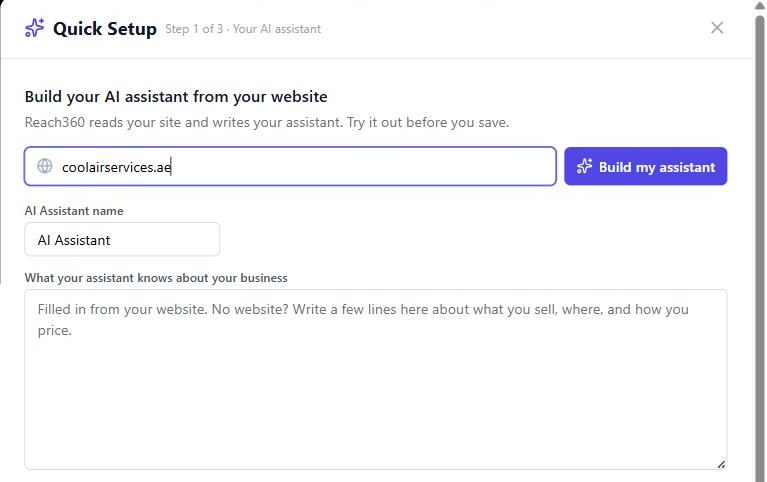
2. Test the assistant as a customer would
Before anything is saved, a chat box lets you question the draft the way a visitor would: “Do you cover Sharjah?”, “What does an AC service cost?”, “Can someone come Thursday?” Wrong answer? Edit the summary and ask again. This step is the point of the whole sequence: you decide whether to trust the assistant before it ever meets a customer.
Saving switches the assistant on for your website. Visitors can only talk to it once the widget in step 3 is installed.
3. Install the widget on your site
Copy one line of code and add it where your site's scripts go, or send it to whoever manages the site. The assistant becomes available to visitors when that line is live on the site, not before — if your developer installs it on Thursday, it starts answering on Thursday. From then on it answers questions from your business summary, captures visitors who engage and leave their details as leads, and a team member can take over any conversation from the Web Chat inbox when they choose to.
A simple contact form is created at the same time; its submissions become contacts too.
4. Add the first contact you are actually talking to
Name, email, phone. They are created as a lead, and the Dashboard now shows something true instead of zeros.
5. Connect the channels when you are ready
From the same screen you can connect your existing WhatsApp Business number (one click, Meta-approved) and the mailbox where enquiry emails arrive, so those emails become leads automatically. Neither is needed for the first session. The WhatsApp inbox, the AI replying on WhatsApp, AI-sent quotes and booking requests are on the Growth plan and above; the website assistant is on every plan. Details on pricing.
6. Let the checklist and the Copilot carry the rest
A Getting Started checklist on the Dashboard ticks each remaining step — branding, email, first quote, team — only when the data shows it is done. And the Copilot at the top of every screen answers “What should I do next?” from your own records, so your second session starts with a short list.
What actually decides how long setup takes
Not the software's first screen. These four:
- Website access. If you can edit the site yourself, the widget is live in a minute. If someone else manages it, it is live when they add the line.
- Contact imports. Fifty contacts you are working now take minutes. Three thousand from an old system take an hour of column mapping and duplicate checks, and are better done in a second session.
- Email permissions. Connecting a Google Workspace or Microsoft 365 mailbox is a sign-in and an approval; some company tenants require an admin to approve it first.
- WhatsApp onboarding. Connecting your Business number through Meta's signup takes a few minutes if you have the Facebook Business login to hand, longer if you need to find who holds it.
Every Reach360 plan includes a free 20-minute setup call for exactly these parts: book it and we do them with you on a screen-share.
What to expect after setup
- AI replies count toward your plan's monthly allowance of AI conversations (100 on Starter, 500 on Growth, 1,500 on Premium). When it is used up, messages are still captured for your team; the AI pauses until the month resets or you top up.
- Website quotes the AI prepares are emailed only after a person approves them. Booking requests land on the scheduler as requested and your team confirms the time. The AI never promises a slot.
- Setup is a sequence, not a form. Import the contacts you are working, let the Next Step column and the follow-up filters show you how the CRM thinks, then bring in the rest. Do not build six pipeline stages before you have ten deals.
If WhatsApp is where your enquiries arrive, read what a WhatsApp CRM is and whether you need one next.
Frequently asked questions
What should I set up first in a CRM?
Whatever answers enquiries when you are not looking: the website assistant, then WhatsApp if that is where customers reach you. Then add the first real contact so the Dashboard shows something true. Imports, pipeline stages and quote templates come after, once the team is in the habit of opening the CRM.
Do I need a consultant to set up a CRM?
It depends on what you are migrating. A small business starting from its website, its WhatsApp number and the people it is talking to can do the first session alone. Large imports, company email tenants that need admin approval, and WhatsApp onboarding are where help saves time; Reach360 covers those in a free 20-minute setup call on every plan.
How long does CRM setup take for a small business?
The first working session, from website address to a tested assistant, takes minutes in Reach360's Quick Setup. The rest depends on website access, how many contacts you import, email permissions and WhatsApp onboarding, which is why setup is a sequence over a few sessions rather than a single afternoon.
Does the AI assistant work on every plan?
The website assistant, lead capture and human takeover are on every Reach360 plan including the 14-day trial, within the plan's monthly AI conversation allowance. The WhatsApp inbox, WhatsApp AI, AI-sent quotes and booking requests are on the Growth plan and above.
Can I change the assistant after setup?
Yes. Its business summary, name, greeting and per-channel behaviour — what it may share, whether it sends quotes, whether it books — live in Settings → AI Assistant. Changes apply to the installed widget without re-pasting the code.
Start a 14-day free trial at reach360crm.com, no card needed — or book the free 20-minute setup call and we build it with you.
Keep reading
More guides for teams that sell in chat
AMC Software: How UAE Maintenance Firms Manage Annual Contracts
What AMC software actually does — contracts, recurring service visits, renewals and teams — and how UAE maintenance firms run it all from one CRM.
Read article GuideBest CRM for Small Business in the UAE (2026): An Honest Guide
A fair, no-hype comparison of the best CRMs for UAE small businesses — Zoho, Freshsales, HubSpot and Reach360 — by price, WhatsApp, VAT and who each fits.
Read article GuideHow to Send Branded Quotes & Get Paid on WhatsApp (UAE Guide)
Send branded, VAT-compliant quotes on WhatsApp with a pay-by-card link — from enquiry to paid, Closed-Won deal in one chat. The quote-to-cash workflow.
Read articleRun your whole sales operation from one CRM
Connect WhatsApp, let the AI qualify your next lead, and send a pay-online quote — all from one place. Start free in minutes.
14-day free trial · cancel anytime